How to Contribute Online
To contribute to the handbook using the GitLab Editor and commit your changes, follow the steps below.
How to Add New Content
To add new content in handbook, you can create new sections or pages by managing the
front matter
the corresponding content files.
Create a New Section
Let’s say we want to create a new section, such as my-new-section at the root level of the repository. Browse the
repository to see the structure
Create a new Folder Structure
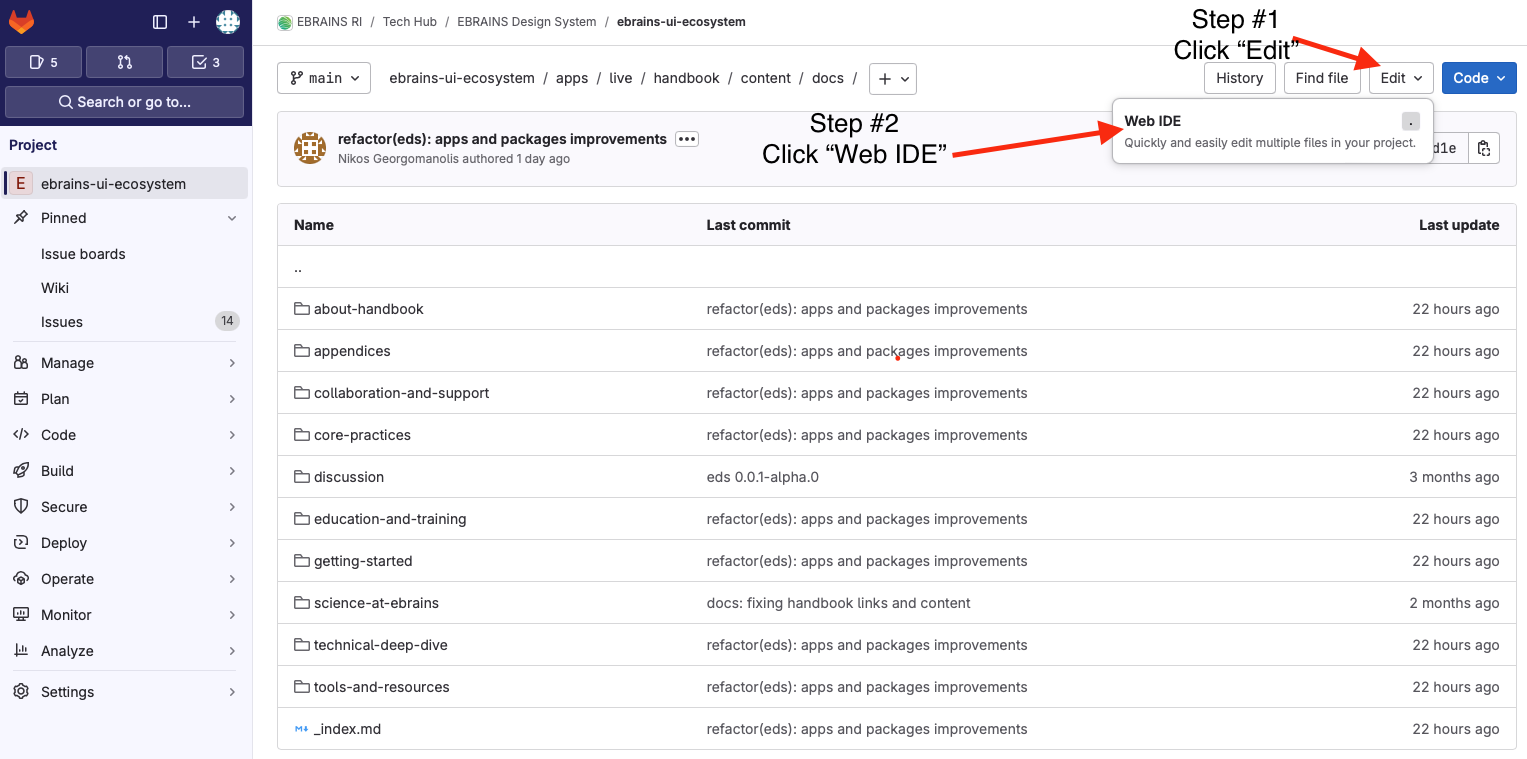
Locate and expand the folder where you want to add a new section; in this case, create a new folder my-new-section under docs.
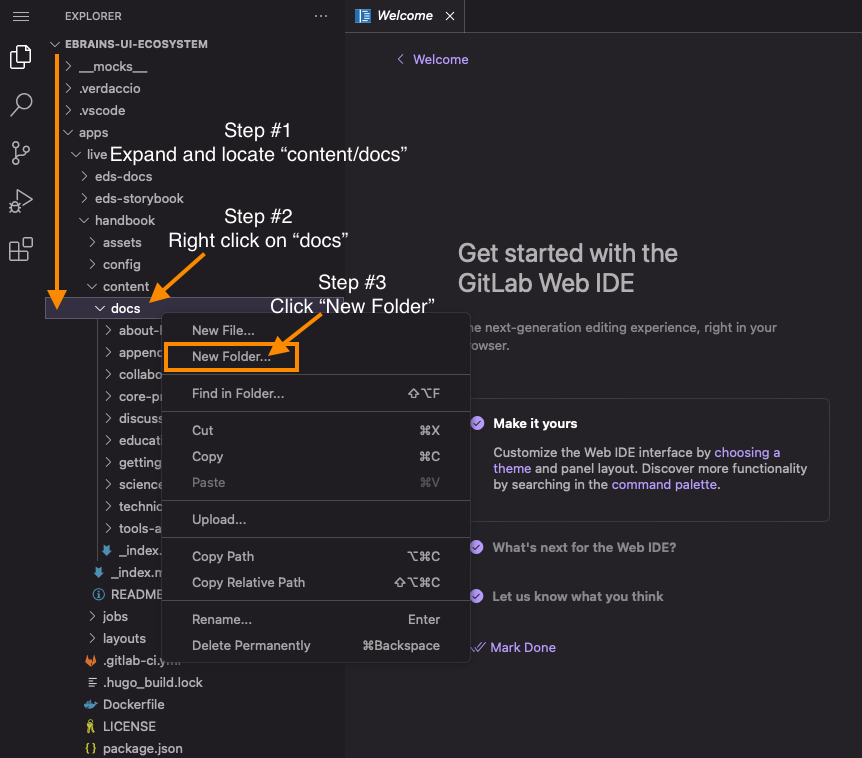
Enter the name of the folder and then press Enter
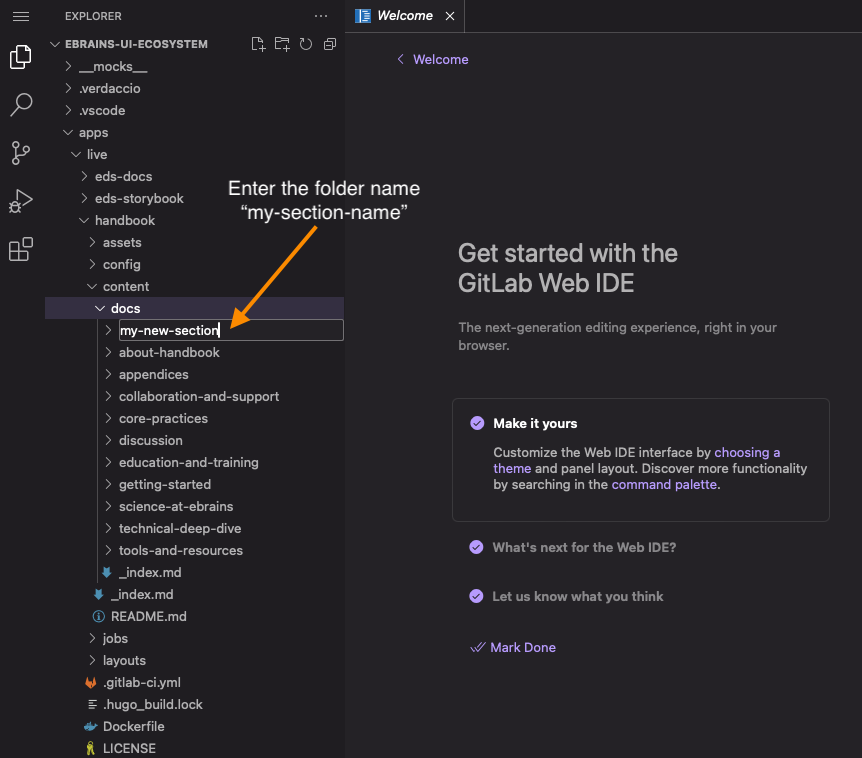
Your new my-new-section has been created. For the folder to be recognized as a section, you need to add a main Markdown page _index.md and include some basic metadata using front matter as described earlier.
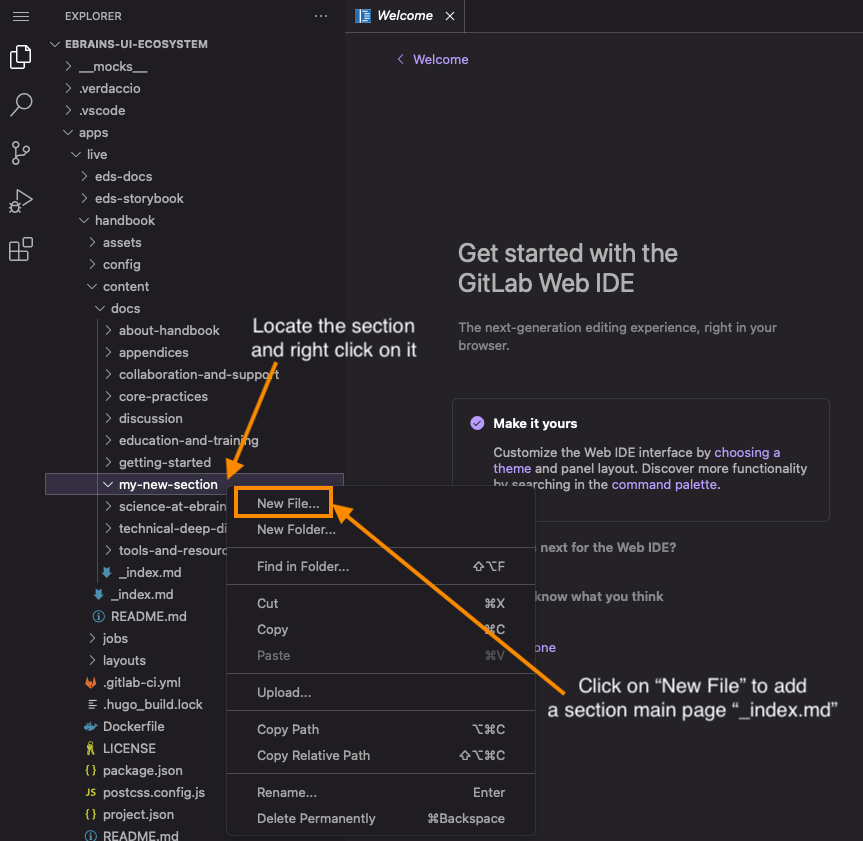
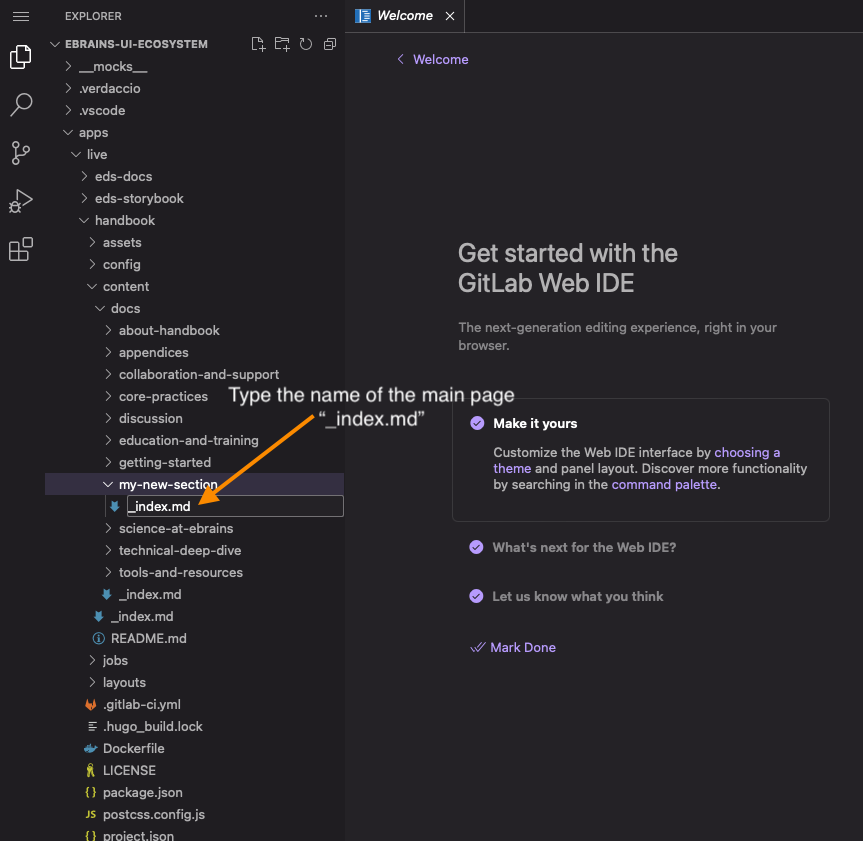
Great! You have successfully created your section and a page to populate with content.
Minimal Content Metadata
At the top of the _index.md file add the following:
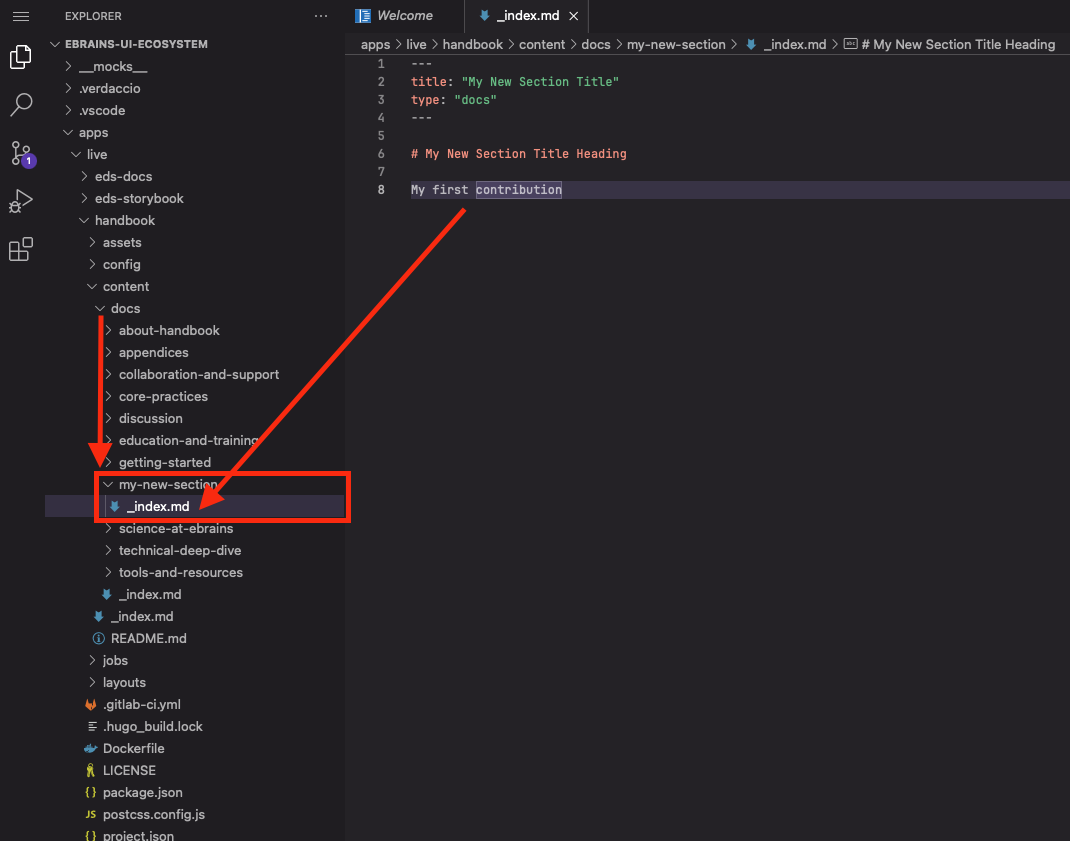
Other important fields to considered:
| Directory/File | Description |
|---|---|
weight | (int) The page weight, used to order the page within a page collection. |
draft | (bool) If true, the page will not be rendered unless you pass the –buildDrafts flag to the hugo command. |
next | (string) The next page to navigate to. |
prev | (string) Navigate to previous page. |
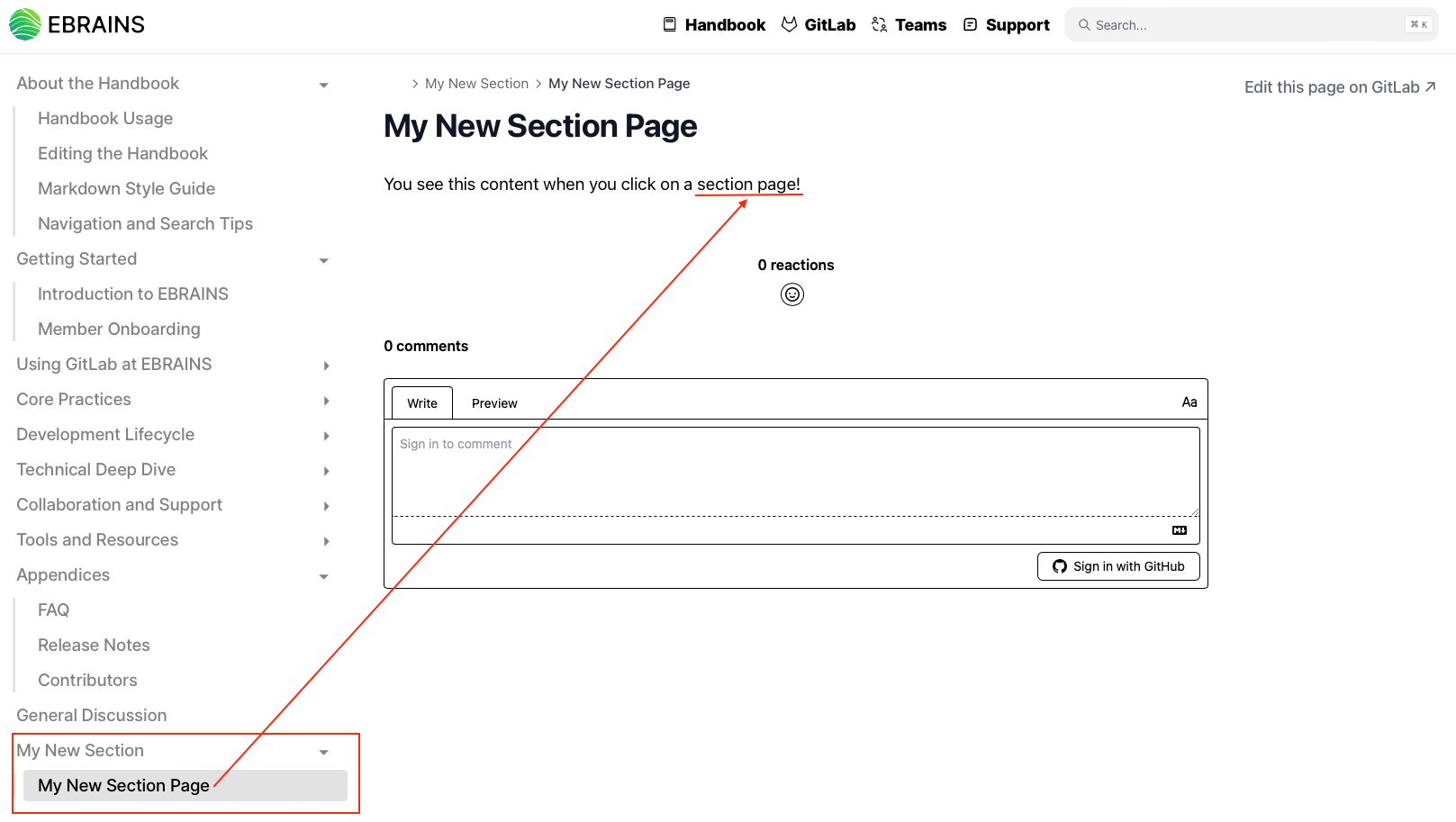
Output
Congratulations! You have created your first section!
See below for How to Commit Content
Create a New Page
The process of creating a new page is similar to creating the section’s main page.
The only difference is that instead of creating an _index.md file under a new section folder, you create your page directly under the desired folder, like my-new-page.md.
For example, to create a new page, you could add a file called my-new-page.md inside the my-new-section folder, or any other folder you want the page to live in.
Just like sections, every new page needs some front matter metadata.
Here’s how the my-new-section structure will look like:
How to Edit Content
Locate the file to edit
Suppose you want to edit a page in the about-handbook/edit section here
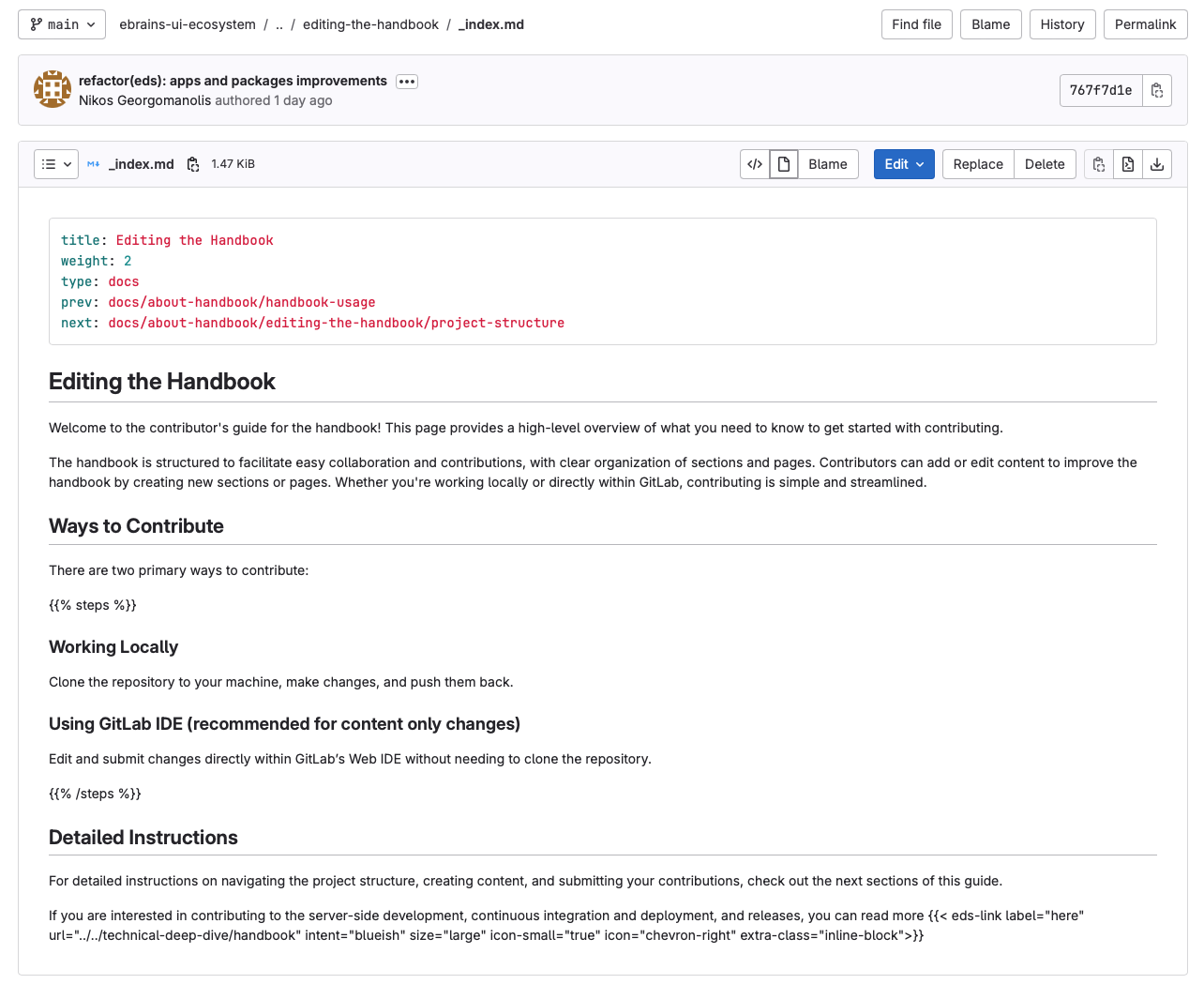
Open the Web IDE
Click the Edit button and then choose Open in Web IDE.
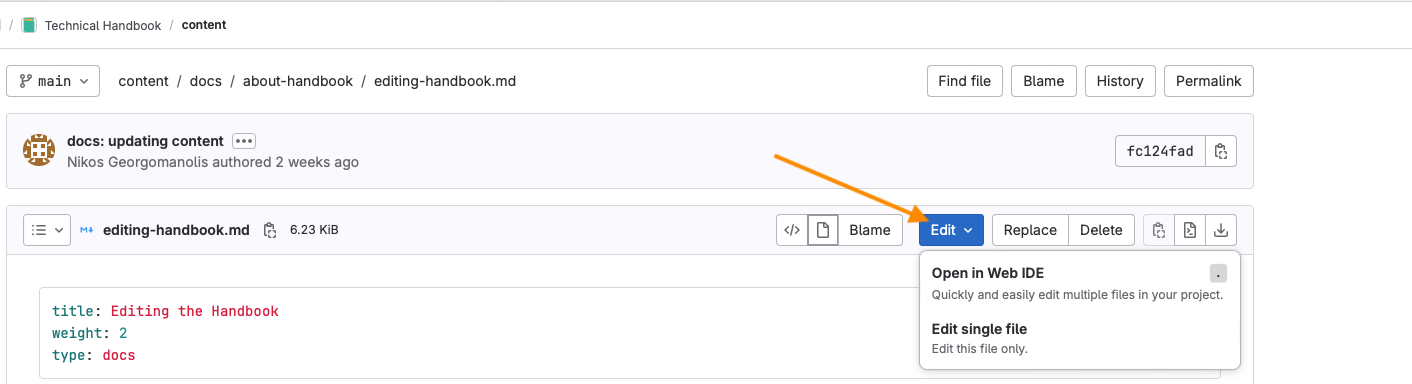
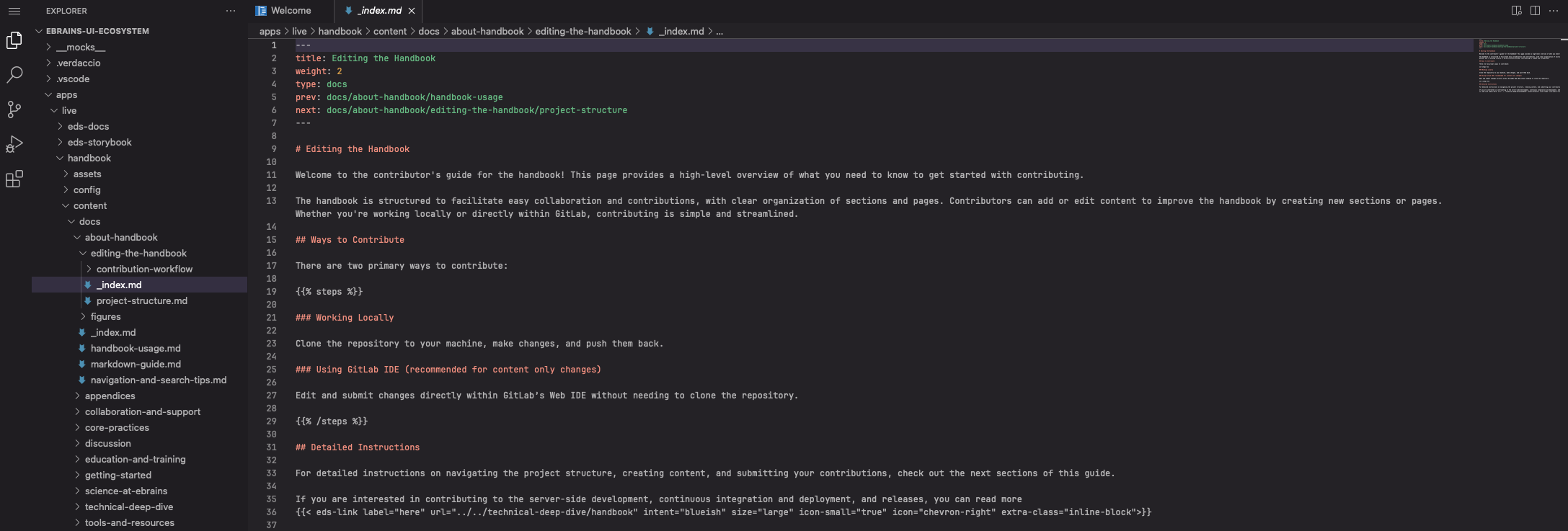
GitLab will open the editing-the-handbook/_index.md file in the Web IDE.
Make your changes
For example, if you want to replace the text at the top of the editing-the-handbook/_index.md page right after the file metadata, change:
to
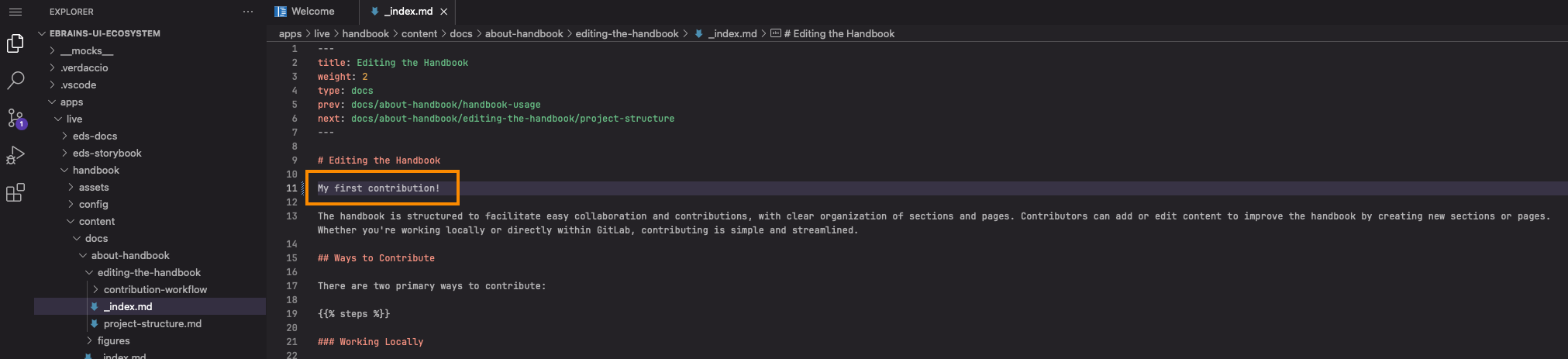
Output
Congratulations! You have edited your first section page!
See below for How to Commit Content
How to Commit Content
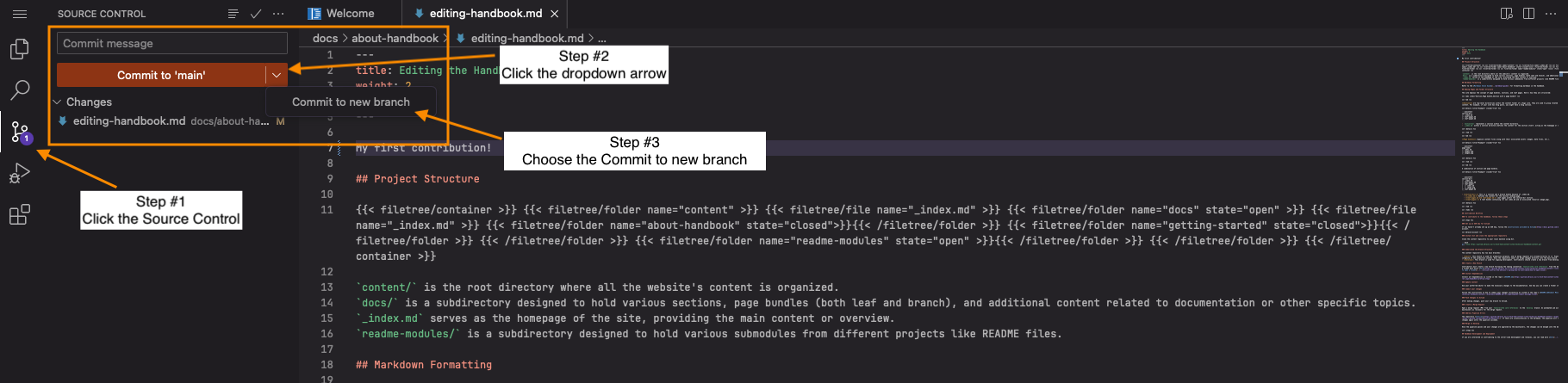
Commit to new branch
As a first step, you need to select Source Control and then Commit to new branch
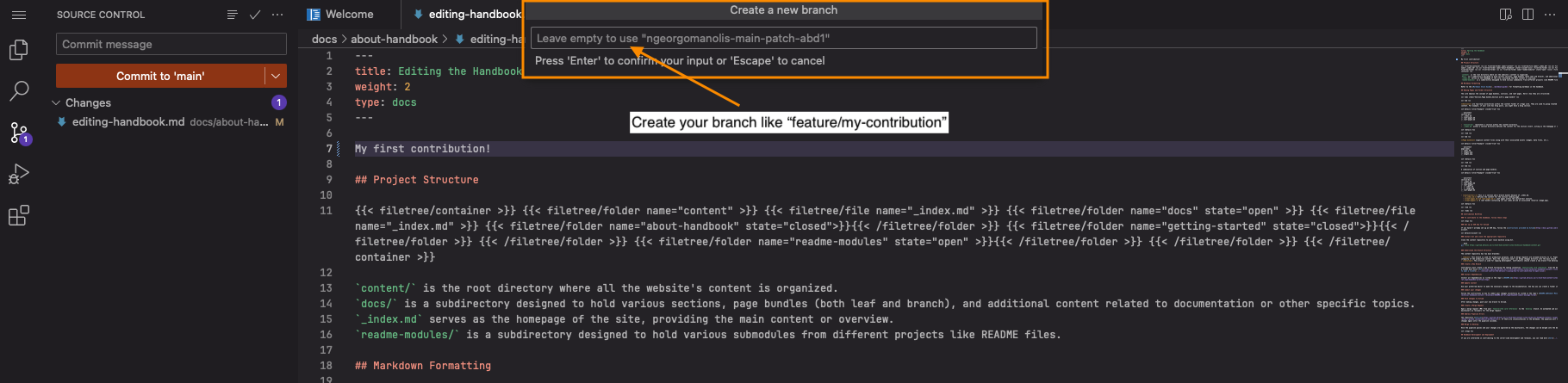
Create your branch by entering feature/my-contribution and press Enter
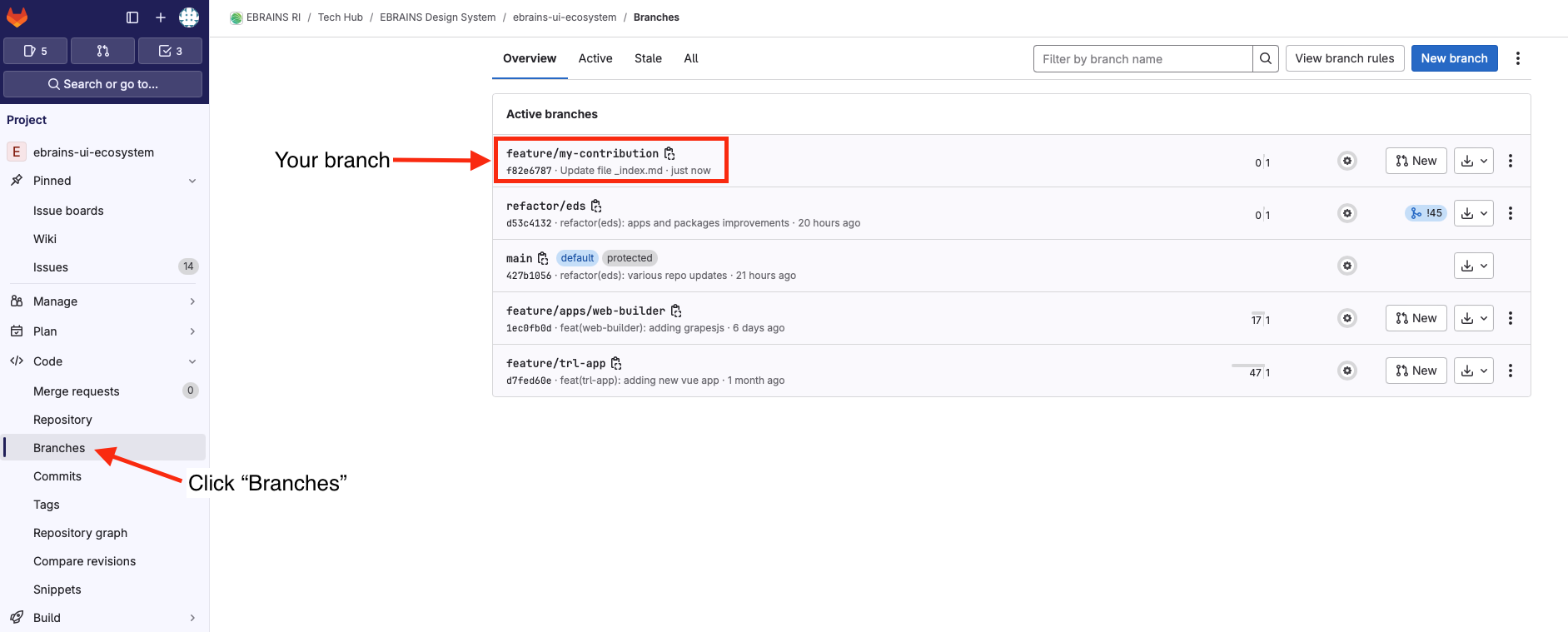
Verify your Branch
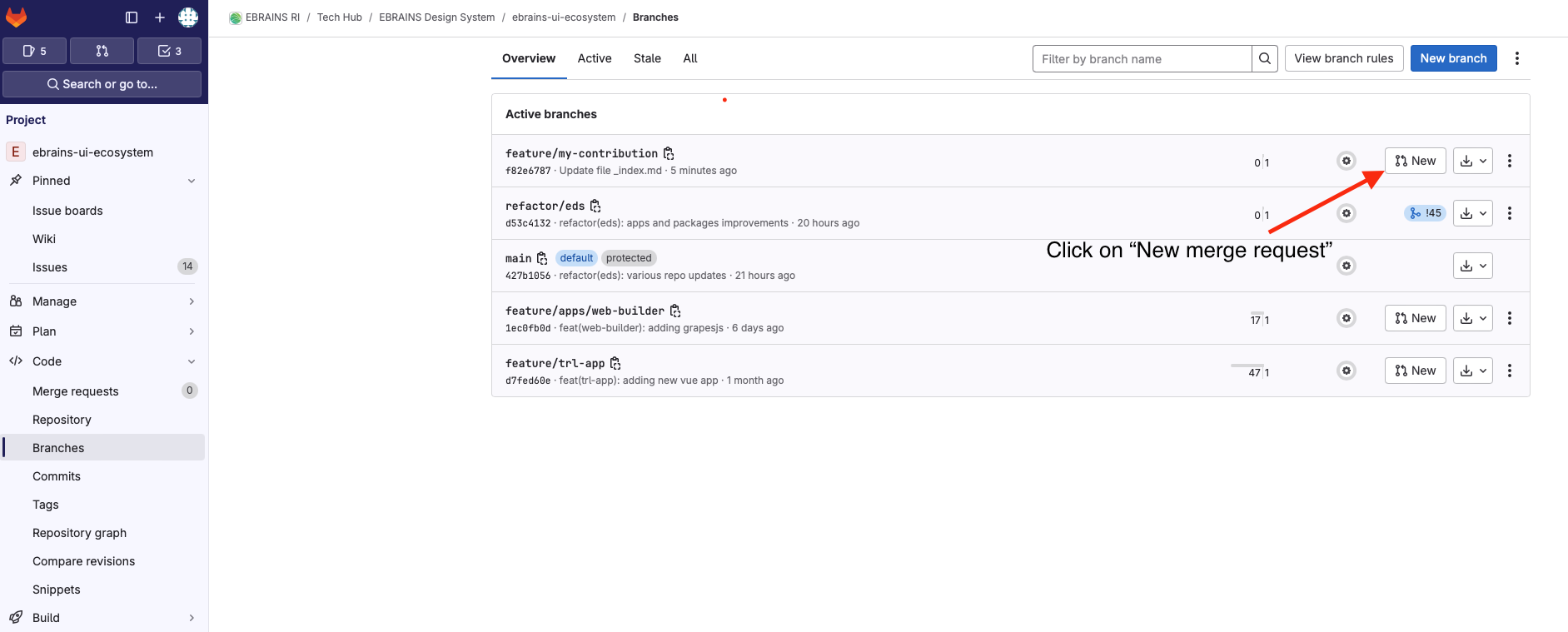
Create a Merge Request
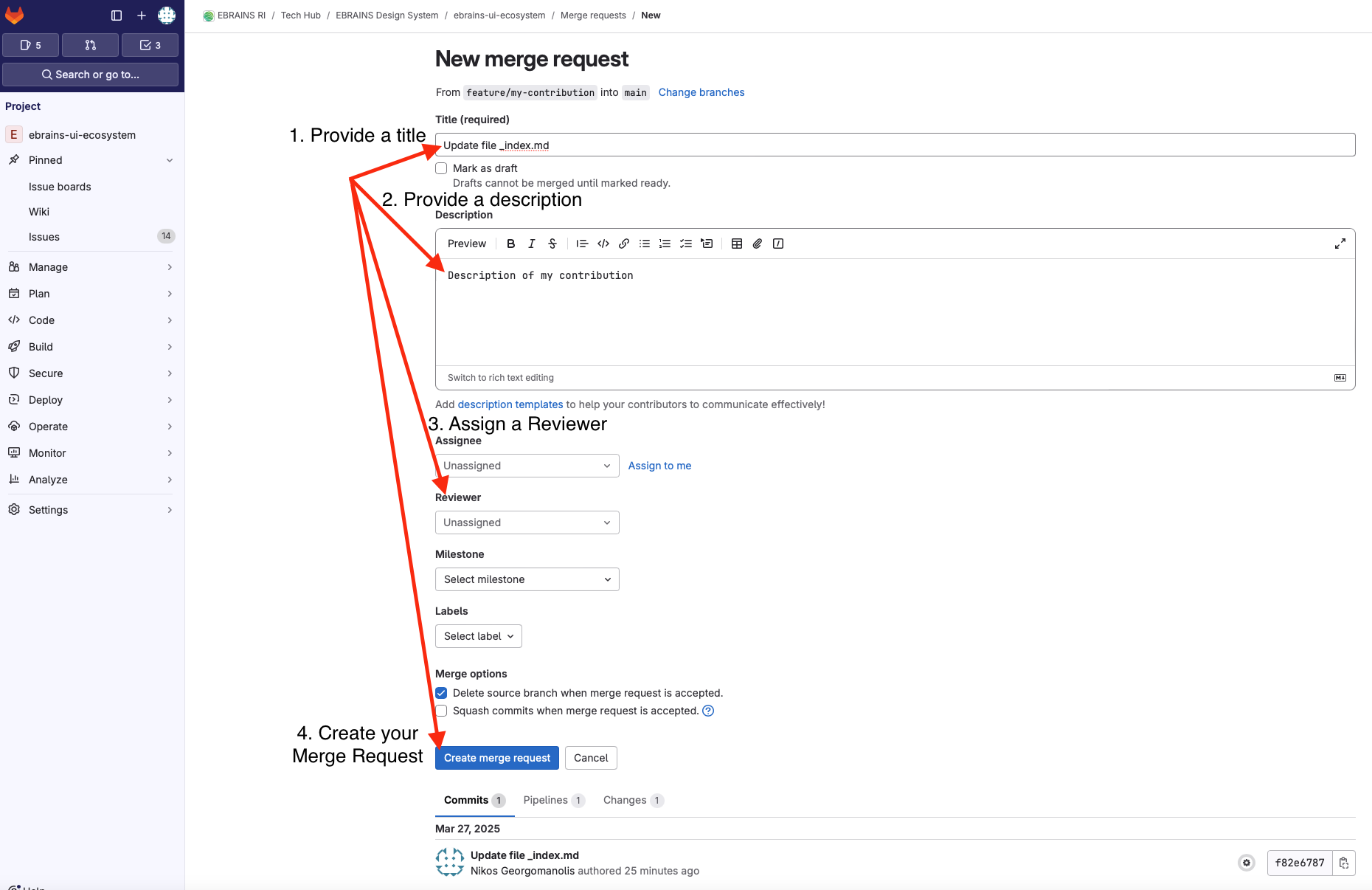
After verifying your branch exists here open a new merge request following the steps below.
If there are no errors, it’s time to merge your contribution.